Register for parking in the portal
This article will take your through the different ways you as a parker can register for parking using the Offstreet Portal! The exact experience may vary, but the steps below cover the most common registration options.
Before you begin
To register for parking, you will need:
- QR Code or Portal Link- Usually located on signage or provided by the parking admin team directly- Stand-alone tablets with the portal are used by some companies- If no QR code or Portal Link has been provided already, check with company you're trying to register with for further assistance
- Your Licence Plate- Format is ABC123. Any spaces or special characters will automatically be removed when typing or copy and pasting
- Parking access code (If required)
Common Registration Options and Flows
Register by scanning a QR code or navigating to URL manually
- Scan the QR code using your device's camera and click the link that appears on screen or navigate to the Lookup Link URL manually
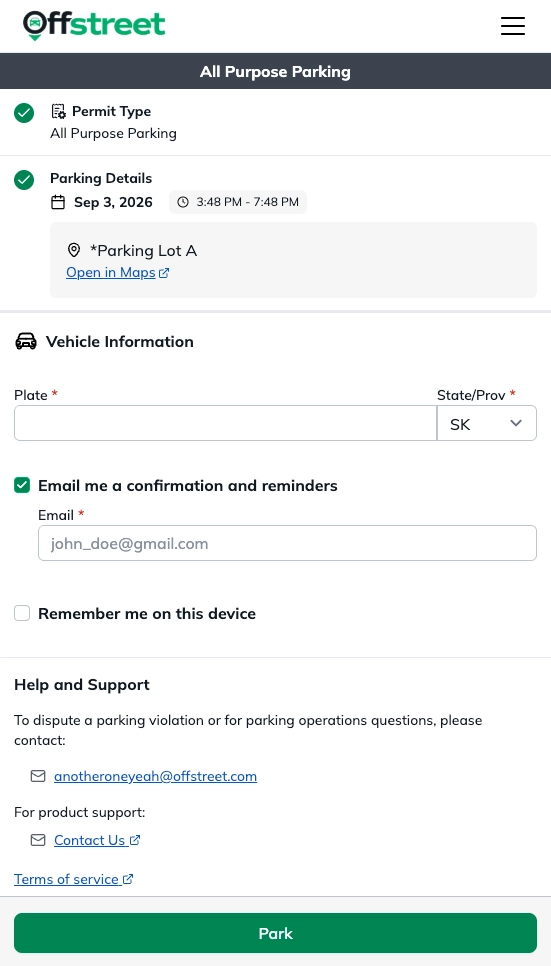
- Enter your Licence Plate, select your State/Province and click PARK or NEXT
- Enter your Email to receive a confirmation receipt and expiry reminders. Some users may be able to enter their phone number for SMS reminders as well!
- Follow the on-screen prompts to complete registration (eg. Entering codes or required information like name, employee IDs, etc.)
- Tap PARK to complete registration (You'll be automatically taken to the confirmation page)
Register Using a Portal with Multiple Parking Options
Some registration portals have multiple options available after entering your license plate(eg. Hourly Parking and Daily Parking). An option must be selected in order to complete the registration:
- Access the Registration Portal using a QR code or Lookup Link
- Enter your Licence Plate
- Select the appropriate parking option
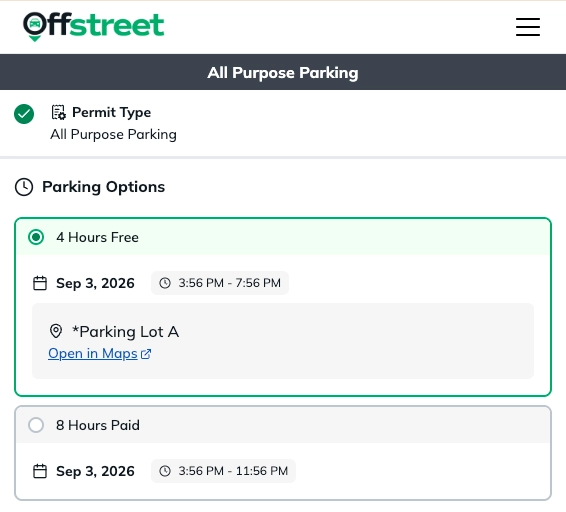
- Follow the on-screen prompts to complete registration (eg. Selecting start/end date and times, entering required information like name, employee IDs, etc.)
Register for Flex Time Parking
Some portals allow you to set the start time, end time, or duration or your parking session. To set your parking session time:
- Select Choose Times
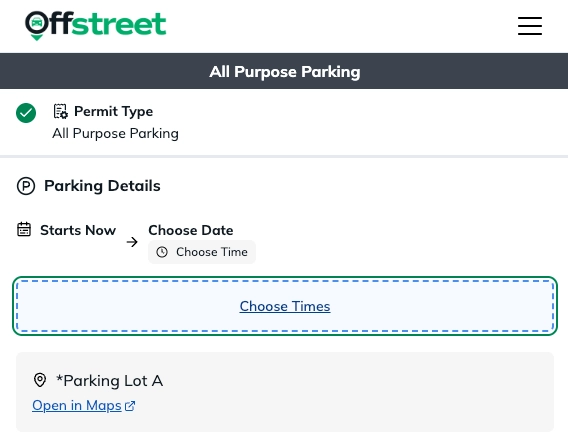
- Set your Start Time, Expiry Time, Duration or Pick Time manually (Available options vary by portal setup)
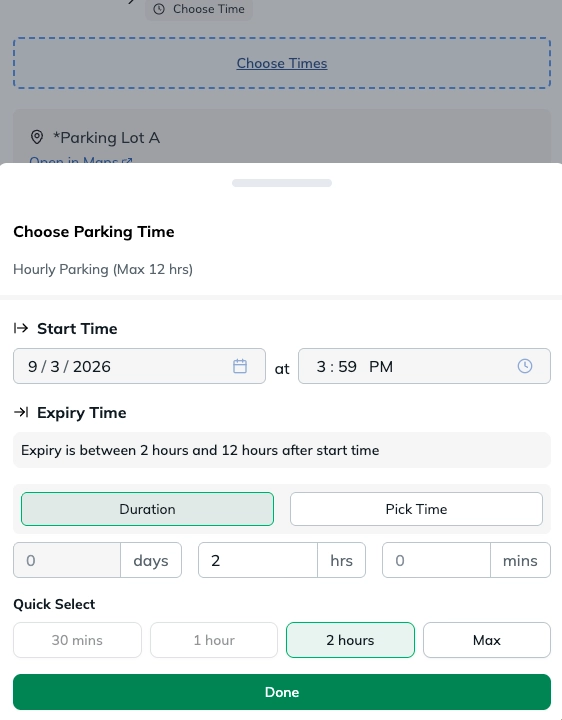
- Select Done to set your session time
- Follow the on-screen prompts and select PARK to complete the registration
Register Using a Code
If a code is required, it should have been provided to you prior to registering. If you have a reusable code, you can check the usage totals by tapping Code Check at the top of any of your confirmation receipts. This walkthrough goes into more detail: How to Check Your Parking Code Usage
- Access the Registration Portal using a QR code or Lookup Link
- Enter your Licence Plate
- Enter Code
- Follow the on-screen prompts and select PARK to complete the registration
Register Using a Location Number
If you are given a location number prior to registering:
- Navigate to https://www.offstreet.io/
- Enter Location Number and tap NEXT
- Enter your Licence Plate
- Follow the on-screen prompts to complete registration (eg. Selecting start/end date and times, entering required information like name, employee IDs, etc.)
Confirmation Receipts
Once a registration is completed successfully after tapping PARK you will be redirected to a confirmation page. If you did not or were not able to enter your email during the registration process you must enter your email address and tap SEND in order to receive a confirmation receipt.
If you navigate away from the confirmation page before emailing the receipt, check your browser history for a URL that looks like https://www.offstreet.io/support/confirmation/123456789.
If you still can't find your confirmation receipt, reach out to the Support team here and we'll be happy to send that over!
Was this article helpful?
That’s Great!
Thank you for your feedback
Sorry! We couldn't be helpful
Thank you for your feedback
Feedback sent
We appreciate your effort and will try to fix the article